
Introduction & Quick Setup
Welcome to Cubix Lite POS, a high-speed, offline-first Point of Sale application designed for desktop computers, touch POS terminals, and tablets.
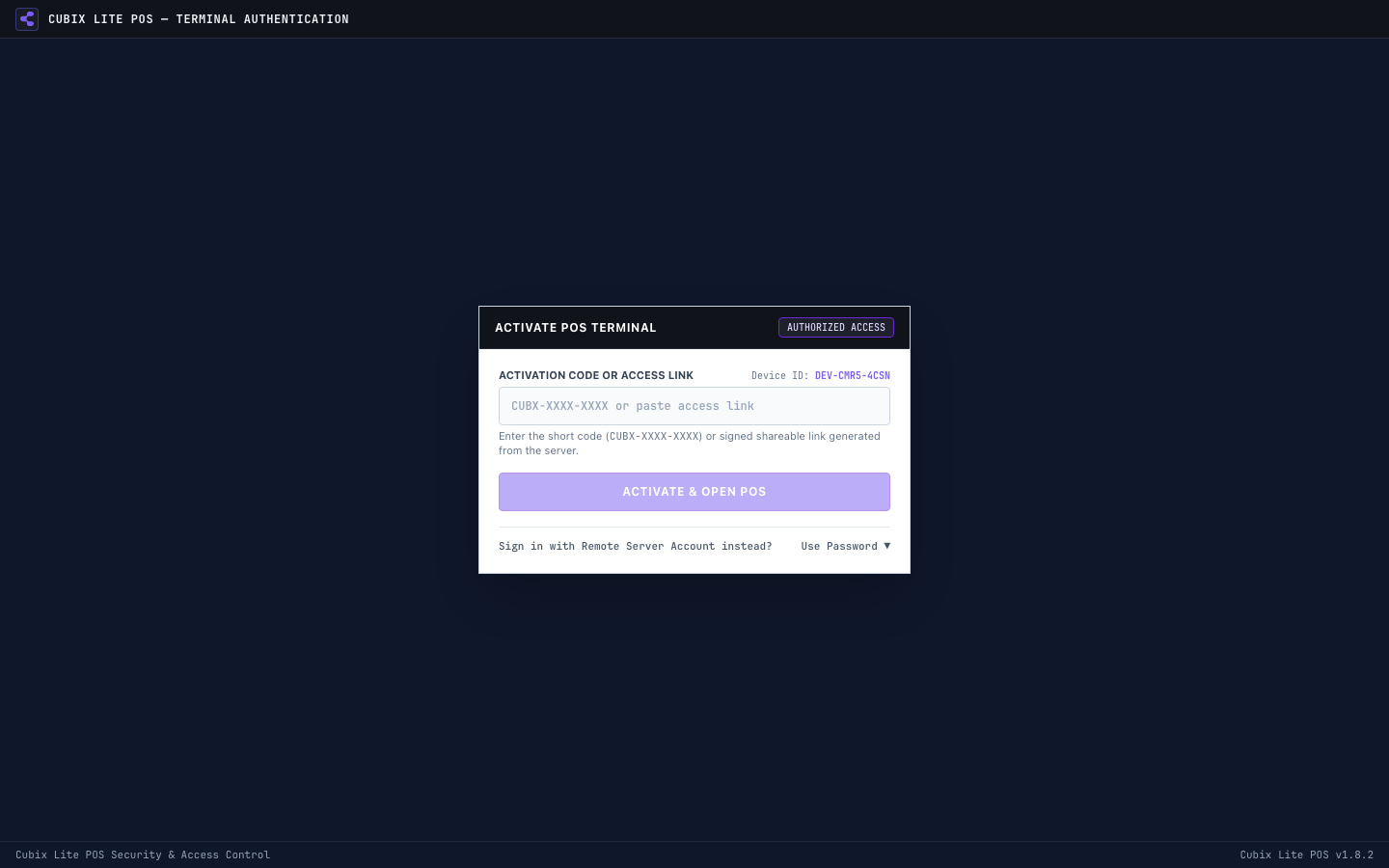
1. System Requirements & Installation
Section titled “1. System Requirements & Installation”Cubix POS is built as a Progressive Web App (PWA), which means you can install it directly onto Windows, macOS, Linux, Android, or iOS:
- Open Cubix POS in Google Chrome, Microsoft Edge, or Safari.
- Click the Install button on the top address bar or use the Install App button under the About menu.
- Once installed, Cubix POS launches in its own isolated window without browser toolbars, enabling full offline persistence and hardware printer access.
2. Setting Up Your Company Profile
Section titled “2. Setting Up Your Company Profile”On initial launch, the Company Setup wizard helps configure your business credentials:
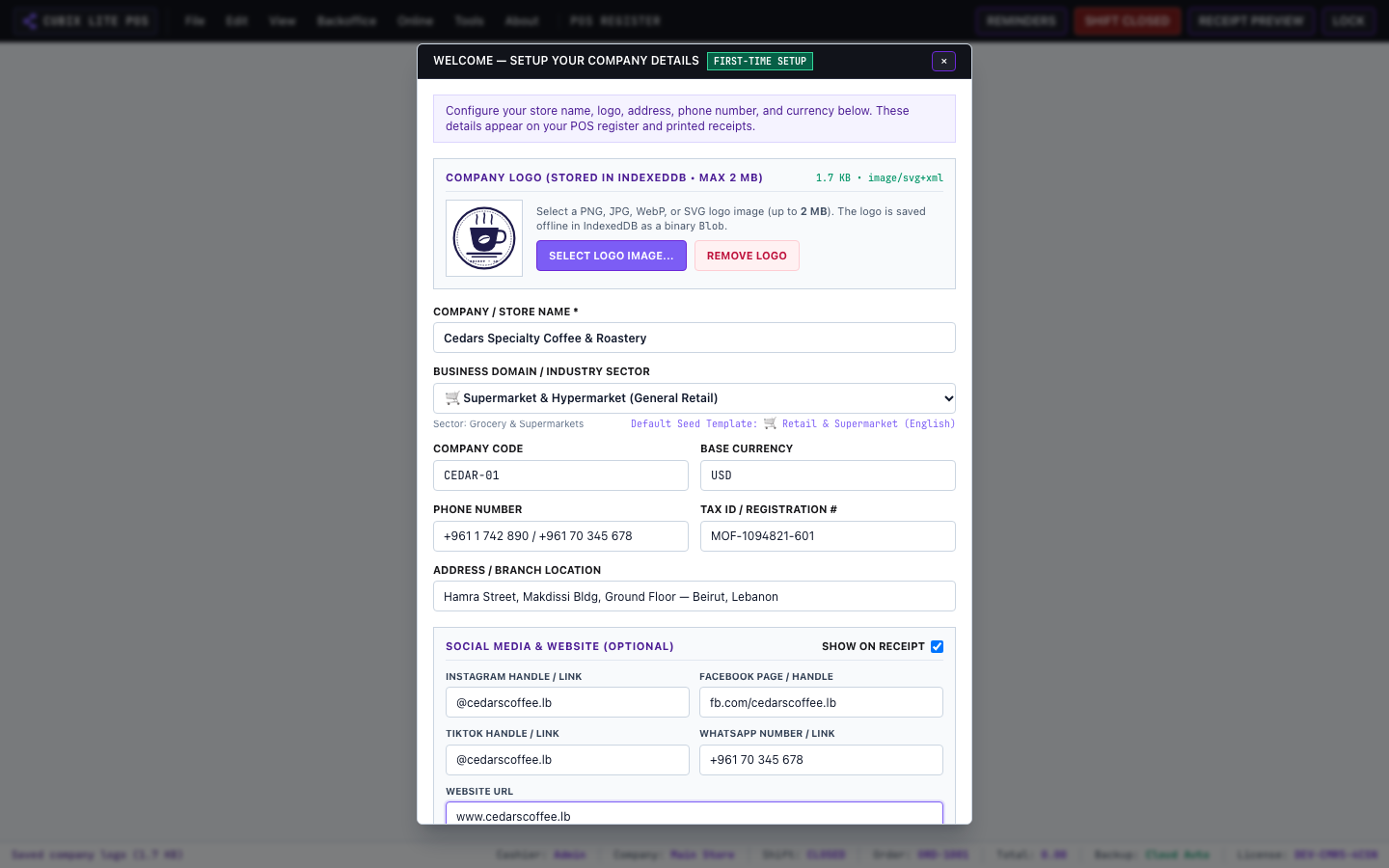
- Company Name & Commercial Info: Displayed on all printed invoices and reports.
- Store Address & Contact Numbers: Printed on customer receipts.
- Store Logo: Upload your store logo (PNG, JPG, or SVG) to automatically appear on printed 80mm/58mm thermal receipts.
- Social Media Handles: Add Instagram, TikTok, WhatsApp, or Facebook links to embed QR codes on customer receipts.
3. Loading Starter Data (Seed Templates)
Section titled “3. Loading Starter Data (Seed Templates)”If you are setting up a new business, you can quickly initialize sample catalog items, categories, and units using our pre-built seed templates:
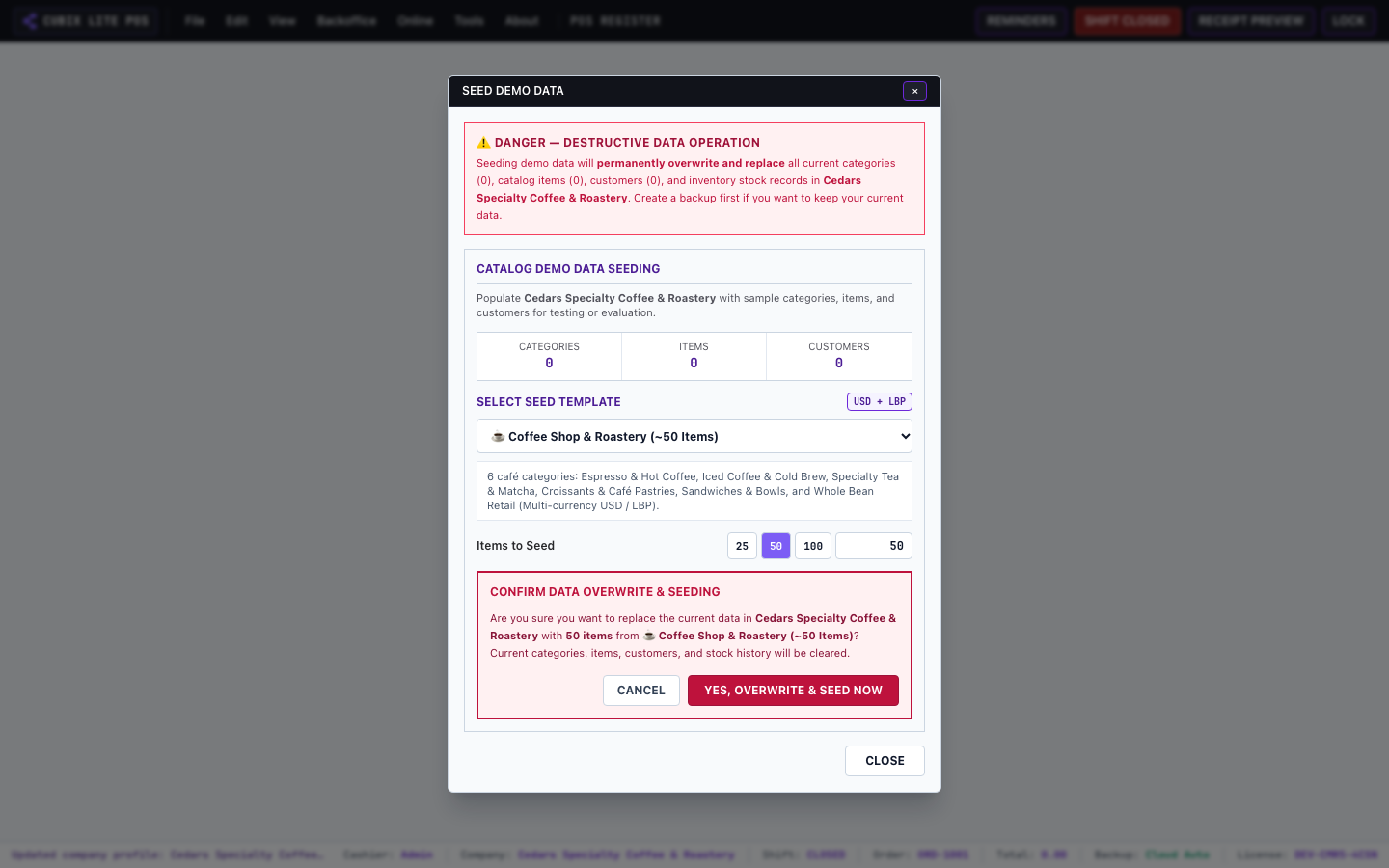
Available industries include:
- Specialty Coffee Shop & Roastery (Espresso, Latte, Bakery, Packaging units)
- Retail Supermarket & Grocery (Packaged goods, weights, barcode items)
- Electronics & Mobile Accessories
- Fashion & Apparel
You can access this at any time from Backoffice > Seed Data.